Back to Help Center

FAQ

Reservations, payments, refunds, and general information

Purchasing Snacks & Drinks in the Lounge

You can purchase snacks and drinks inside the lounge

Sheem Lounge offers a selection of light snacks and beverages available for purchase directly in the lounge. There’s no need to bring anything from outside—you can pay on-site and enjoy them right away.

How to Purchase

Please use whichever of the following two methods is most convenient for you.

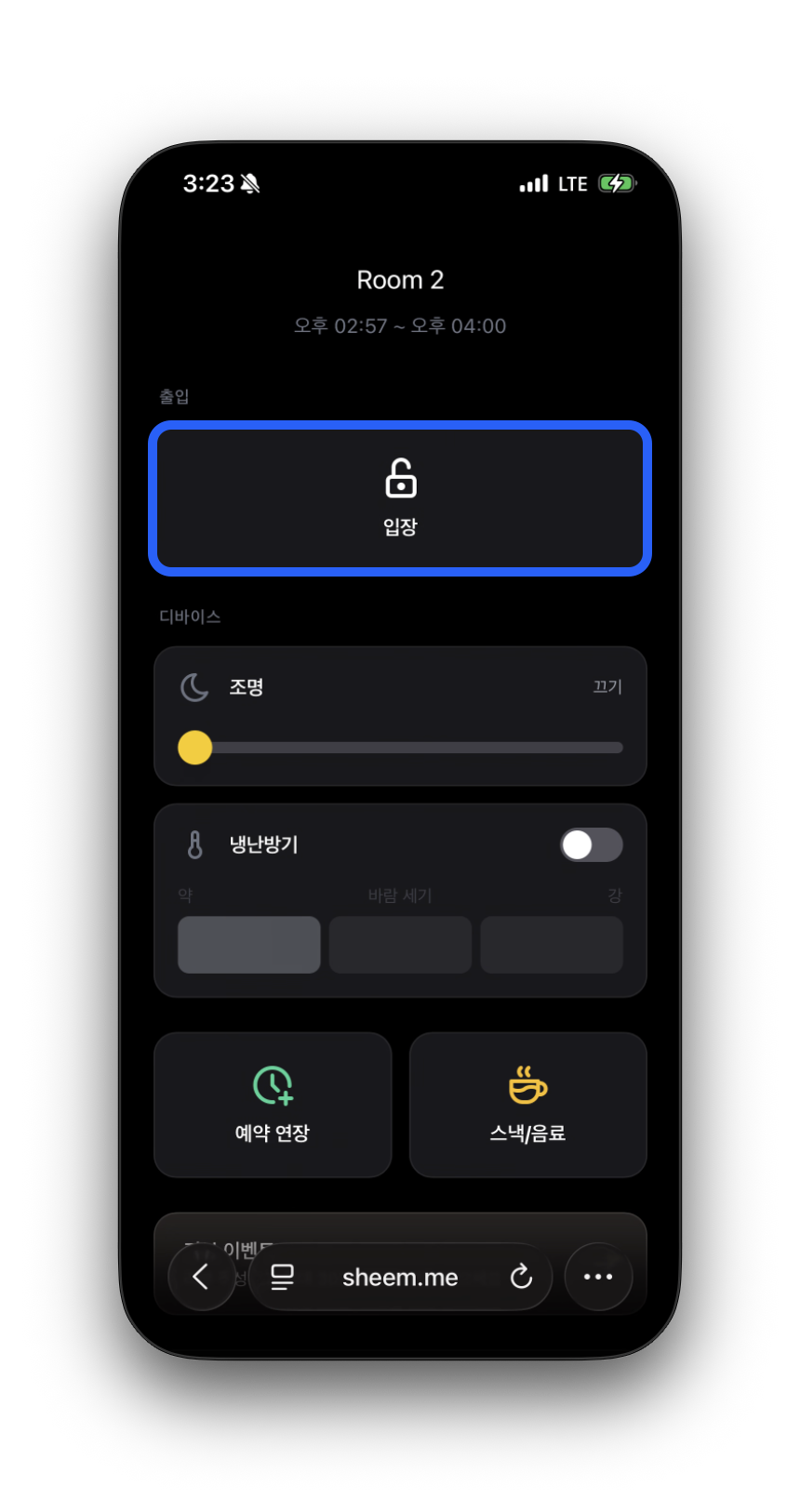
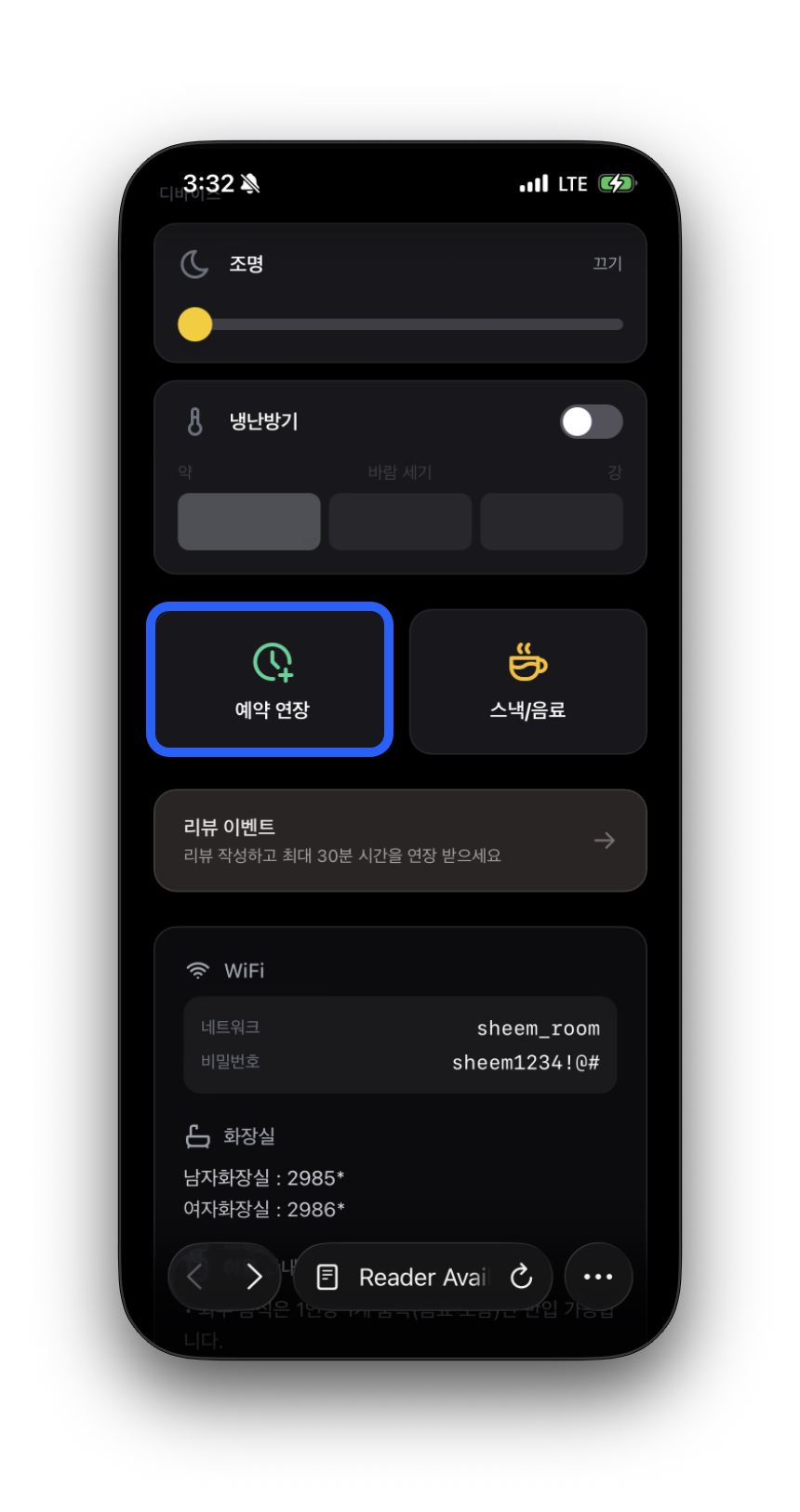
1. The [Snacks/Drinks] button on the Mobile Key page

After check-in, tap the [Snacks/Drinks] button on the Mobile Key page to go to that lounge’s sales page. (You can open the Mobile Key from the KakaoTalk/SMS link sent when your reservation is confirmed.)

2. Scan the QR code at the snack bar

Scan the QR code placed at the snack bar in the lounge with your phone camera to access the same sales page.

Both methods lead to the same page, where you can check the available menu items and prices in real time.

Payment

  • When you select a menu item, you will be taken to the card payment page for each purchase.
  • Once payment is complete, you may pick up your item directly from the snack bar or receive it according to the instructions provided.
Food Policy

Foods Allowed

  • Light snacks: crumb-free and odor-free snacks such as chocolate bars, energy bars, jelly, and candy
  • Cakes: allowed, but cake boxes cannot be disposed of inside the lounge
  • Odor-free foods: plain rice porridge, sandwiches (as long as they do not have a strong smell)
  • Sealed drinks: bottled beverages, takeaway coffee, etc.

Leftover drinks cannot be thrown away in the trash bin!

Foods Not Allowed

  • Strong-smelling foods: jokbal, fried chicken, pizza, fish, garlic-heavy or strongly seasoned foods
  • Foods that create a lot of crumbs: bagged chips, popcorn, crackers
  • Soupy foods: ramen, stews, soup, etc.
  • Alcoholic beverages: all types of alcohol

How do I make a reservation?

How to Make a Reservation

  1. Choose a lounge: Select the lounge you want.
  2. Choose a room/seat: Check the available rooms (or seats) and time slots.
  3. Choose a date/time: Select your preferred date and usage time.
  4. Payment: Once payment is completed, your reservation is confirmed.

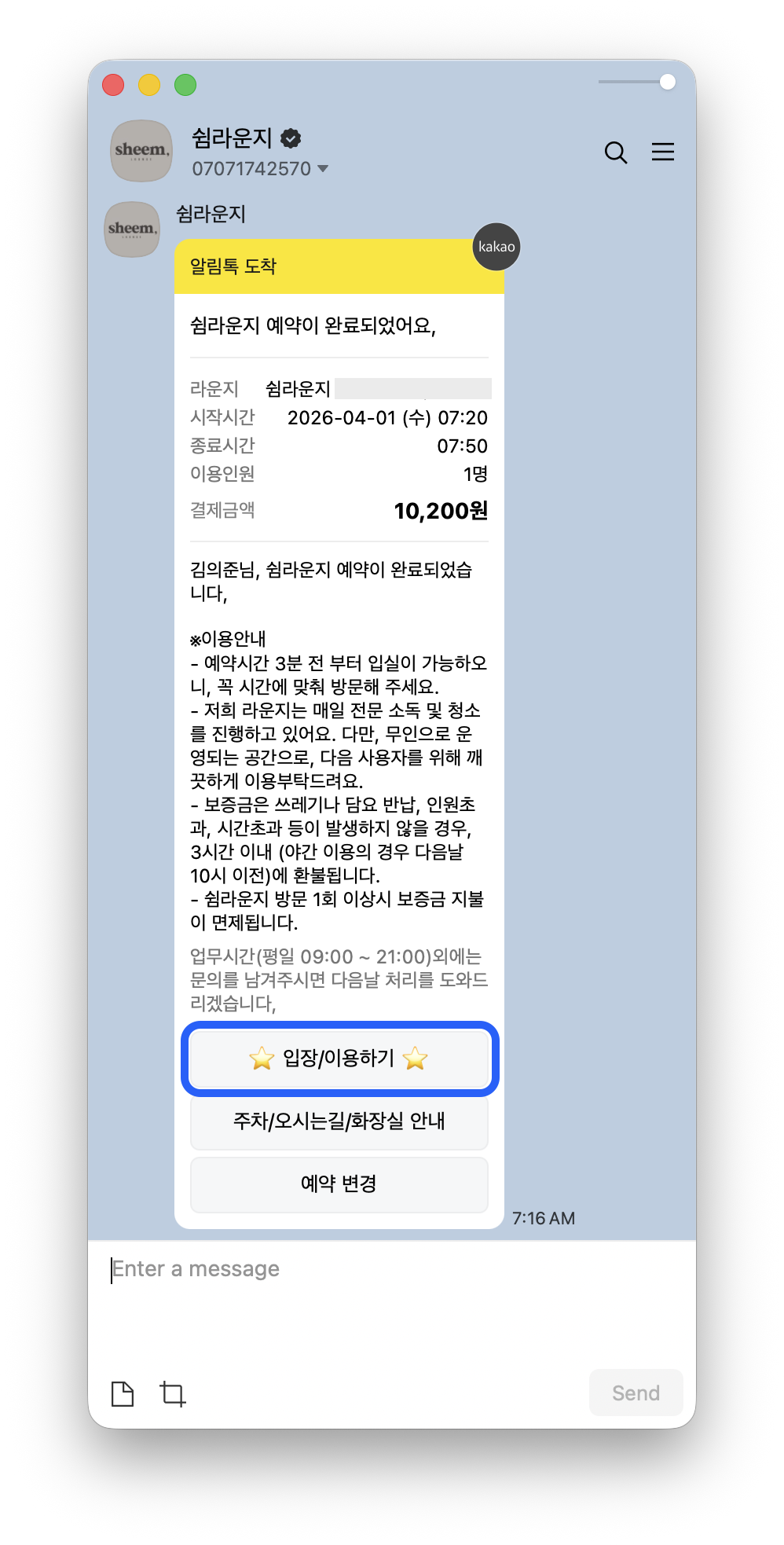
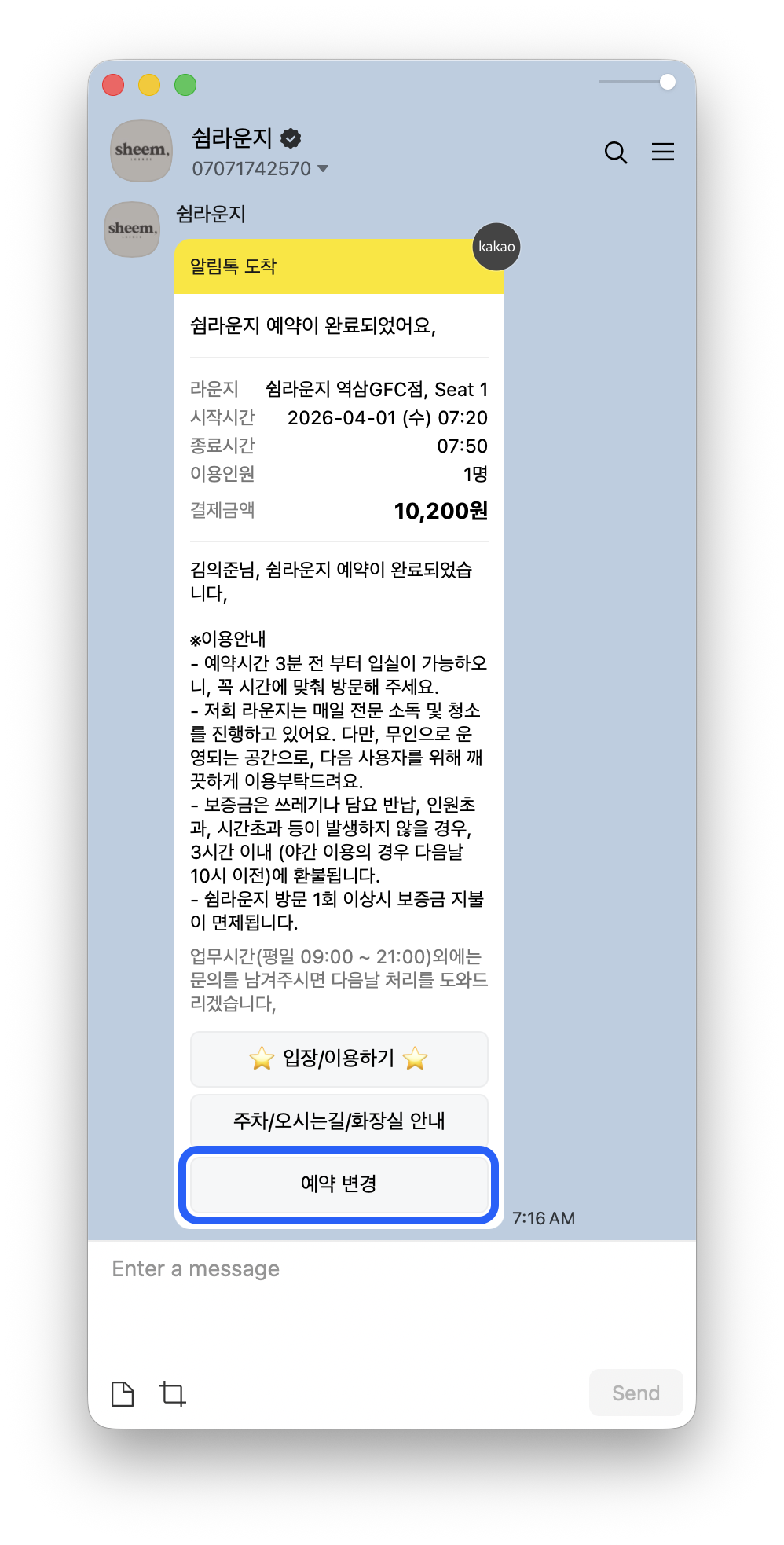
After your reservation is confirmed, a reservation confirmation message will be sent via KakaoTalk.

Tap the [Enter/Use] button at the bottom of the KakaoTalk message to access the facility. If you do not use KakaoTalk, usage instructions and a link will be sent by SMS. For international guests, usage instructions and a link will be sent by email.

Changing a Reservation

  • You can change your reservation directly in My Reservations.
  • Or, you can tap the [Change Reservation] button at the bottom of the reservation confirmation KakaoTalk message.

For Naver Reservations

  • Due to system limitations, Naver Reservations are not synced with real-time availability and are operated only for "reservation request" purposes. After submitting your request, the real-time timetable in the official website reservation link we send you reflects the actual confirmed reservation status.

  • Even if it appears as "Available for Reservation" on Naver, that time slot may not appear when you open the payment link if it has already been booked on the official website. In this case, please choose a different time slot or room type.

  • If you do not receive the Kakao notification message If you do not receive a Kakao notification message within 1 minute after submitting your request, please check real-time availability and make your reservation directly through the official website (sheem.me).

How to Use After Submitting a Naver Reservation Request

  1. Please note that Naver Reservations are operated for reservation request purposes only and are not real-time confirmed reservations.
  2. After submitting a Naver reservation request, you must complete the reservation and payment through the official website reservation link sent via Kakao notification message in order to use the facility.
  3. Please check the actual payment amount and available reservation times on the real-time timetable on the official website.
  4. Even if a time appears available on Naver, it may not be selectable if it has already been booked on the official website. In this case, please choose a different time slot or room type.
  5. If you do not receive a Kakao notification message within 1 minute after submitting your request, please make your reservation directly on the official website (sheem.me).
  6. Entry is available starting 3 minutes before your reservation time, and you may use the facility after completing mobile identity verification.
  7. For safety and security, CCTV is installed inside, and minors are not permitted in 2-person rooms.

What payment methods are available?

Payment Methods

  • Online Payment: We accept credit cards, debit cards, and simple payment services (Kakao Pay, Naver Pay, Toss Pay, etc.).
  • On-Site Payment: On-site payment is not available.
  • Foreign Payments: International guests can pay via PayPal. Please set the currency to USD when making the payment.

Receipt

After completing your payment, you can view your receipt on the reservation details page.

How do I enter?

Mobile Key Check-In

  1. Once your reservation is confirmed, a reservation confirmation message will be sent via KakaoTalk.
  2. When it is time to check in, the mobile key will be activated.
  3. Tap Enter (Check In) on the mobile key to check in and unlock the door.

Important Notes

  • The mobile key will be activated 3 minutes before your reservation time.
  • You may enter at any time during your reservation period.

Adjusting Heating and Cooling from the Mobile Key

Where can I control it?

After check-in, you can control it directly from the mobile key page.

  • Mobile key page: the link in the SMS sent when your reservation was confirmed or https://sheem.me/key/<reservation number>
  • There is no separate wall-mounted remote or control button in the room. All controls are handled through the mobile key page.

What you can control

After check-in, in the Air Conditioner/Heater card under the Devices section:

  1. Power toggle — Turn it on or off using the switch on the right side of the card.
  2. Fan speed — Adjust it by tapping the segmented bar for Low / Medium / High. (If it is in Auto mode, an "Auto" notice will be shown.)

Depending on the room, preset buttons set up in advance by the host (e.g. Strong Cooling, Low Heating) may also be displayed. In rooms with presets, one tap sets the mode, temperature, and fan speed all at once.

If you want to switch between cooling and heating modes

  • Rooms with preset buttons: Tap the preset button for the mode you want.
  • Rooms without presets: There is no mode switch button on the mobile key page. Please contact us via our KakaoTalk channel or Channel Talk and send <reserved room number> please switch to cooling or please switch to heating, and we’ll change it for you right away.

Frequently Asked Questions

  • Nothing happens when I press the button — Right after check-in, it may take a moment for the device status to update. Please try again after 5–10 seconds.
  • It says "Identity verification is required" — Device control is only available after the accompanying guest’s identity verification is completed. Please follow the identity verification instructions at the top of the mobile key page.
  • I can’t adjust it after my usage time ends — Controls are only available during your booked time.

Coupon Guide: Viewing, Using, and Expiration

View Your Coupons

You can see all issued coupons on the My Coupons page (login required).

  • They are organized into three tabs: Available / Used / Expired.
  • You can quickly check each coupon’s discount details, expiration date, and usage conditions at a glance.
  • Coupons with 7 days remaining until expiration are highlighted with a D-7 label.

Coupon Types

  • % Discount Coupon: A percentage discount off the payment amount (e.g. 10% off)
  • Fixed Amount Discount Coupon: A discount for a set amount (e.g. ₩5,000 off)
  • Time Coupon: Adds free usage time (e.g. 30 minutes) — mainly used for extending your session time

How to Use Coupons

At the payment step of your reservation, simply select the coupon you want to use and the discount will be applied automatically.

  • Multiple coupons can be applied at once to a single payment.
  • Time coupons are automatically deducted during the extension step on the [Mobile Key] page.

Some coupons may be valid only for specific lounges, rooms, or items, or may have usage limits per user. If a coupon cannot be applied, please check its conditions on My Coupons.

Expiration Notice

  • A coupon’s expiration date is set at the time of issuance, and it can be used through the expiration date itself.
  • Starting the day after the expiration date, it will automatically move to the Expired tab and can no longer be used.
  • It is generally difficult to extend the validity period of an expired coupon.
  • Some promotional coupons may have no expiration date, in which case they can be used indefinitely.

Gift Coupons

You can gift your coupons to someone else.

  • My CouponsGift button on the coupon card → Enter the recipient’s phone number
  • A coupon that is currently being gifted cannot be used by you either (if the gift is canceled, it can be used again).
  • Only one in-progress gift can exist for a single coupon at a time.

Cancellation & Refund Policy

Cancellation Fees

Cancellation TimingFee
3 hours before the start of useFree cancellation
Within 3 hours of the start of use50% of the payment amount
Within 30 minutes of the start of useNon-refundable
No-show (no entry)Non-refundable

Refund Processing Time

  • Card payment: Refunded by the card issuer within 3–5 business days after cancellation
  • Easy payment: Refunded within 1–3 business days after cancellation

Latest Cancellation & Refund Policy

  1. Dear customer, if you cancel within 10 minutes of payment, you will receive a 100% refund, regardless of how much time remains until the reservation starts.
  2. If you cancel more than 3 hours before the start of use, you will receive a 100% refund.
  3. If you cancel from 3 hours before up to 30 minutes before the start of use, you will receive a 50% refund.
  4. Cancellations within 30 minutes of the start of use or no-shows are not eligible for a refund.
  5. However, even within 30 minutes, if you cancel within 10 minutes of payment, rule 1 takes priority.

Cancellation & Refund Guidelines

  1. Dear customer, if you cancel within 10 minutes of payment, you will receive a 100% refund, regardless of how much time remains until the reservation starts.
  2. If you cancel more than 3 hours before the start of use, you will receive a 100% refund.
  3. If you cancel from 3 hours before up to 30 minutes before the start of use, you will receive a 50% refund.
  4. Cancellations within 30 minutes of the start of use or no-shows are not eligible for a refund.
  5. However, even within 30 minutes, if you cancel within 10 minutes of payment, rule 1 takes priority.

[Massage Chair Usage Guide] Familie S

If You Wish to Sleep

  1. Press the Zero Gravity button twice to set it to Zero Gravity Level 2.
  2. Press the Power button once, and when "Press End to turn off" appears on the screen → it will not return to its original position.

When Using the Massage Function

Please select and use your preferred massage mode.

The massage chair will automatically stop every 20 minutes. If you would like to continue using it, simply select another massage mode again.

Deposit Information

What is the deposit?

To help maintain a clean and comfortable environment, some lounges require a deposit (50% of the reservation amount) on your first visit. If you tidy up after use—such as not leaving trash behind and returning blankets—so that the next guests can use the space without inconvenience, the deposit will be fully refunded within 3 hours.

However, for overnight use, the deposit will be refunded by 10:00 AM the following day.

Deposit deduction criteria

  • If any damage to or contamination of the facilities is found, repair and/or cleaning costs may be deducted.
  • If a deduction is made, a text message explaining the reason will be sent.

Deposit refund process

An approval cancellation will be processed for the deposit amount from the total payment, and a deposit refund receipt will also be sent via KakaoTalk.

For debit cards, the cancellation request is submitted to the card issuer immediately, but depending on the card issuer, it may take 3–4 business days for the refunded amount to be reflected in your bank account.

Extend Usage Time

How to Extend

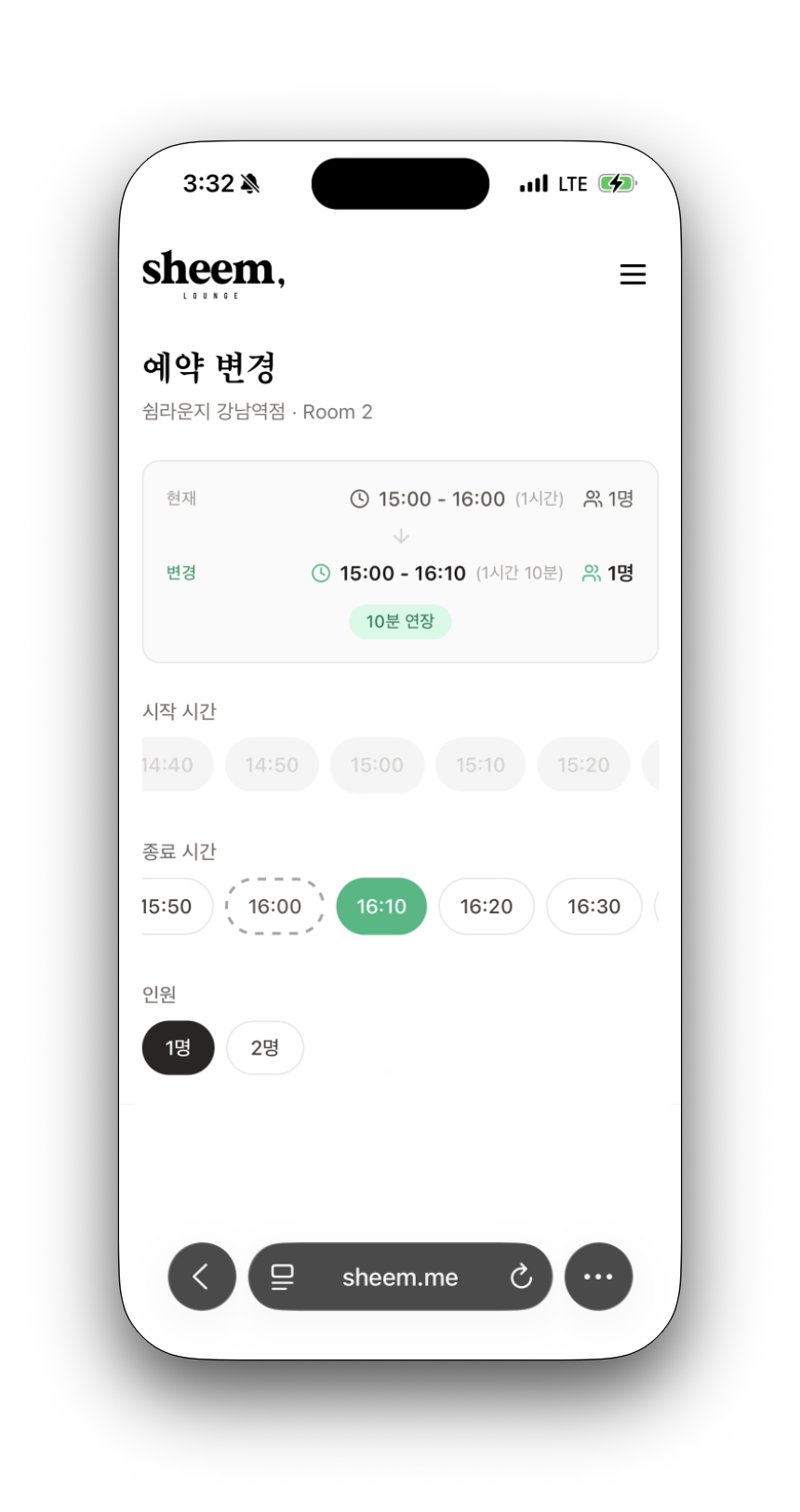
  • While using the lounge, you can tap the extend button on the Mobile Key page to pay for additional time.

  • Extensions are only available if there is no reservation after yours.

Extension Fee

  • The same hourly rate as the standard usage fee applies.
  • Extensions are available in 10-minute increments.

How to Contact Customer Support

Contact Channels

  • KakaoTalk Channel: Search for "쉼라운지" and start a 1:1 chat
  • Phone Inquiries: Contact number for each lounge (see the lounge detail page)
  • Channel Talk: Chat icon at the bottom right of the website
  • Email Inquiries: support@superplace.so

Operating Hours

  • KakaoTalk/Naver TalkTalk: 09:00 ~ 22:00 (Open year-round)
  • Phone Inquiries: 09:00 ~ 18:00 (Weekdays)

For urgent late-night inquiries, please leave a message via the KakaoTalk channel and we will respond the following morning.

How do I use OTT services?

  1. Please note that Netflix accounts are not provided separately.
  2. You may log in with your personal account to use Netflix, TVING, Disney+, Coupang Play, and other services.
  3. You may also cast content from your personal phone to the TV/projector for viewing.
  4. If you log in with your personal account, please make sure to log out before leaving.
  5. If you forgot to log out, please use the remote logout feature in each OTT app.

Lost Item Inquiry

Reporting a Lost Item

This lounge does not keep a separate lost and found.

If you left an item behind after your visit, please contact Customer Support. If the lost item has been turned in by our lounge staff or another guest, we will guide you on how to retrieve it.

How to Collect

  • In-person pickup: Collect it at the relevant lounge

Age Restrictions

Eligible Age for Use

  • Single Room: Available for all ages.
  • Double Room: Available only to guests aged 19 and over (ID verification required)

All guests are required to complete identity verification (mobile phone verification) when making a reservation.

Service Recovery Promise

Service Recovery Promise

If your usage time is shortened due to an issue on our side, our policy is to make sure you get that time back.

If You Are Currently Using the Lounge

We will automatically extend your reservation on the spot by the amount of time lost, so you can finish comfortably.

If an Extension Is Not Possible

If another reservation is scheduled next, or if you have already checked out, we will issue a time coupon for the same amount of lost time. You can view the issued coupon right away on the My Coupons page and use it as-is on your next visit.

Please feel free to let us know anytime.